
On this page
Turning on more proxy options does not necessarily make internet access work better. On Windows, decide whether you need TUN by checking whether it handles the failing program’s connections, while keeping the access method that already works. After changing the settings, also check local network devices and internet access after exiting.
The Browser Works, but the Terminal or Game Has No Connection Records
Repeat one request in the browser and one in the failing program, then check the connection records. If the browser works through the system proxy but the terminal, game launcher, or store app has no record, test TUN handling. Keep the system proxy when the browser and your usual apps already work.
The system proxy tells programs that read it the Windows proxy address; TUN receives more TCP and UDP connections through a virtual network adapter. Once traffic enters Mihomo, rules still determine routing. TUN does not fix failed nodes or incorrect rules.
If no program can connect, check the subscription, node, or core. If only a particular domain uses the wrong exit, inspect the matched rule. Enabling TUN is not an appropriate fix for either situation.
Verify the System Proxy and a Fixed Node Before Enabling TUN
Before enabling TUN, select the current subscription under “Configurations,” pin one verified node on the “Proxies” screen, and keep the mode on Rule. Enable the system proxy, visit a familiar website, and confirm on the “Connections” screen that the request appears.
Once the system proxy works, you can return to it if later settings cause problems. If there are no connection records, check whether the system proxy took effect and whether the program uses it. If records show DIRECT, inspect the policy group and rules. Enabling TUN will not repair configurations or nodes and adds virtual-adapter troubleshooting.
Before opening TUN settings, you should see
- The current configuration has a clear update time
- The proxy screen shows policy groups and nodes
- The fixed node can complete one web request
- Connection records show the domain, rule, and actual outbound route
Install Service Mode to Obtain Virtual-Adapter Permissions
Creating a virtual adapter on Windows requires elevated privileges; service mode lets the interface run without administrator privileges each time. Before installing it, verify the actual service files against the official fix rather than relying only on the main app version. Find “Service Mode” in settings and use the client’s built-in installer if it is not installed.
When Windows requests elevation, the initiating program should come from the installed Clash Verge Rev. Reload the core after the service installs. If status keeps switching between “Stopped” and “Starting,” inspect the log before repeatedly clicking the TUN toggle.
Enable TUN and Repeat the Original Request
Switch from a working state
Quit other proxies and VPN software
Prevent multiple programs from changing routes or occupying the same port.
Keep Rule mode and a fixed node
Do not let an automatic benchmark group switch outbound routes during the test.
Enable TUN mode
Wait for the service and virtual adapter to become ready; do not change DNS and rules at the same time.
Repeat the action that previously failed
For example, run the same terminal command or open the same page in the launcher.
Current Mihomo supports network stacks including system, gvisor, and mixed. Keep the client default if it works; changing stack is a compatibility diagnostic, not a performance toggle. If system or mixed connections are blocked, also check whether Windows Firewall allows the Mihomo core process.
auto-route sends matching system traffic into TUN, while auto-detect-interface identifies the real outbound adapter. Understanding these fields helps with logs, but graphical-client users do not need to copy a large online configuration for “optimization.”
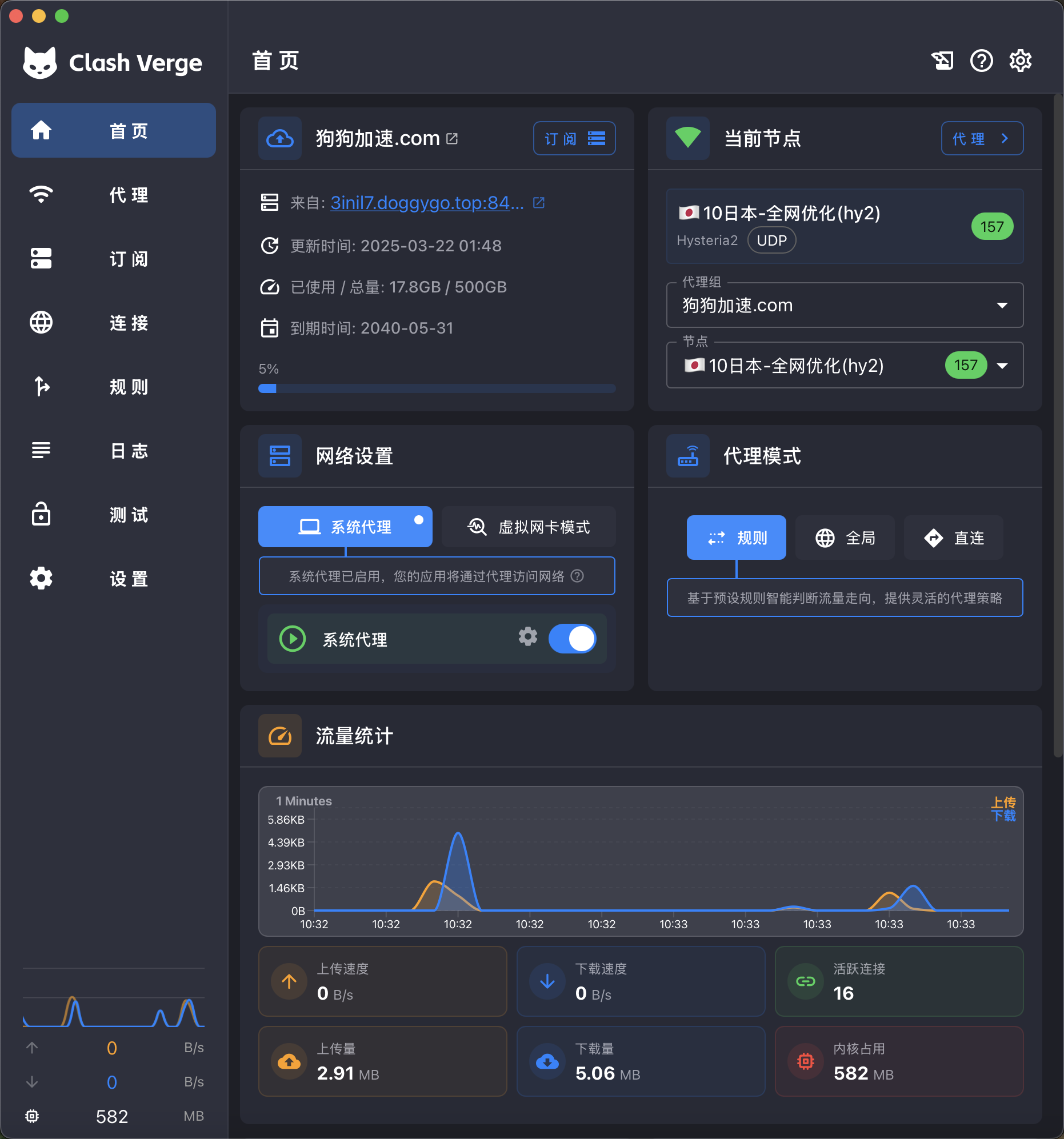
Which Requests Appear in Connections?
Return to the program that failed under the system proxy and repeat the exact same request. If the “Connections” screen now shows the domain or target IP along with its rule and outbound route, traffic entered Mihomo through TUN. The setup truly works only if the app also receives a result.
The app fails, and the connections screen has no new record
Check service status, the virtual adapter, other VPN software, and Windows Firewall.
A record appears but shows DIRECT
Inspect the matched rule line; do not repeatedly toggle TUN instead of fixing the rule.
A record uses the proxy and shows timeout
Pin another working node to distinguish an entry-path issue from a node issue.
No Connectivity After Enabling TUN: Restore the System Proxy and Check the Service
If the system proxy works again after disabling TUN, the subscription and node are probably still working; focus on the service, routes, virtual adapter, or DNS. If the system proxy also fails, recheck the configuration and core.
- Service fails to start
- Reload the core and inspect logs for permission, service, or driver messages.
- A virtual adapter exists, but no requests appear
- Disable TUN in other VPNs or an older Clash installation, and confirm that a second virtual adapter is not also changing routes. If security software blocks traffic, check its logs and the allow rules for the current core.
- Connections appear, but domain resolution fails
- Inspect DNS logs and dns-hijack settings. Advice about Android Private DNS does not apply to Windows; do not combine tutorials.
- It fails only after changing Wi-Fi
- Have the core detect the outbound adapter again, then inspect the auto-detect-interface result.
LAN Access for NAS Devices, Printers, and Virtual Machines
If external access has recovered but the router admin page, NAS devices, or printers are unreachable, local connections probably entered TUN without matching direct local-network rules. If these devices return immediately after disabling TUN, that also supports the diagnosis.
Confirm that private-address rules match DIRECT before a broader proxy rule. If the corporate network uses custom subnets and internal domains, add its real addresses instead of copying a home-network exclusion list. strict-route on Windows may also affect virtual networks such as VirtualBox, so validate virtual machines separately.
Information needed to restore local-network access
- Actual IP and subnet of the unreachable device
- The rule matched by that connection in Clash
- Whether corporate internal DNS works only on the current network
- Whether VirtualBox, Hyper-V, or another virtual adapter also exists
Disabling TUN Versus Uninstalling the Service
Disable TUN, keep the verified configuration and node, then enable the system proxy. If networking recovers immediately, there is no reason to use Windows “Network reset.” That action clears Wi-Fi, virtual adapters, and other network settings together—far more than the current issue requires.
Disabling TUN does not require uninstalling service mode. If you no longer need it, remove the service through the uninstall option in client settings. After returning to the system proxy, the browser should work again, while programs that depended on TUN will again have no connection records. This difference shows whether TUN is needed.
If the target program enters Connections only under TUN and the network, DNS, and local network all work, keep TUN. When the system proxy already covers everyday programs, leaving TUN off is simpler.