

Step 01Download and install
Choose your operating system
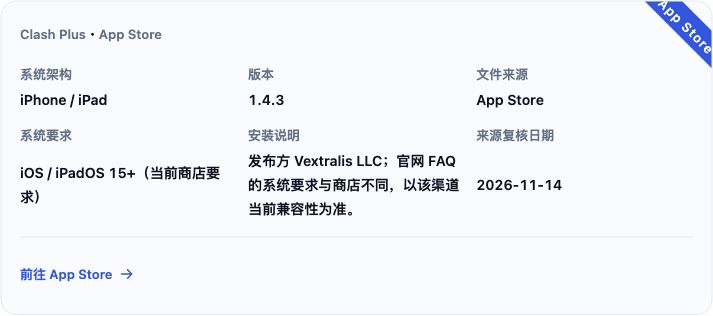
Open this site’s download page → iOS → App Store and install Clash Plus by Vextralis LLC. Have a compatible subscription URL ready and turn off other VPNs.
Step 02Set the language
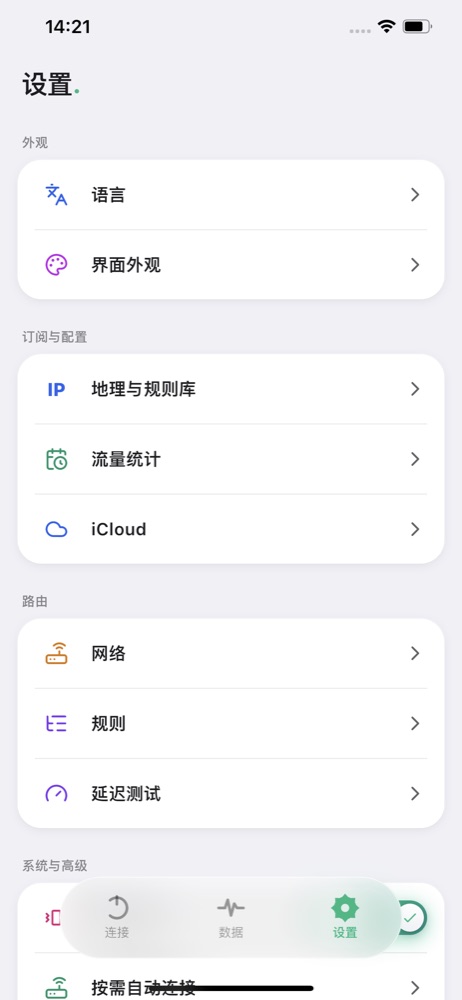
Tap 设置 (Settings) → 语言 (Language) and choose your language.
Step 03Get a subscription
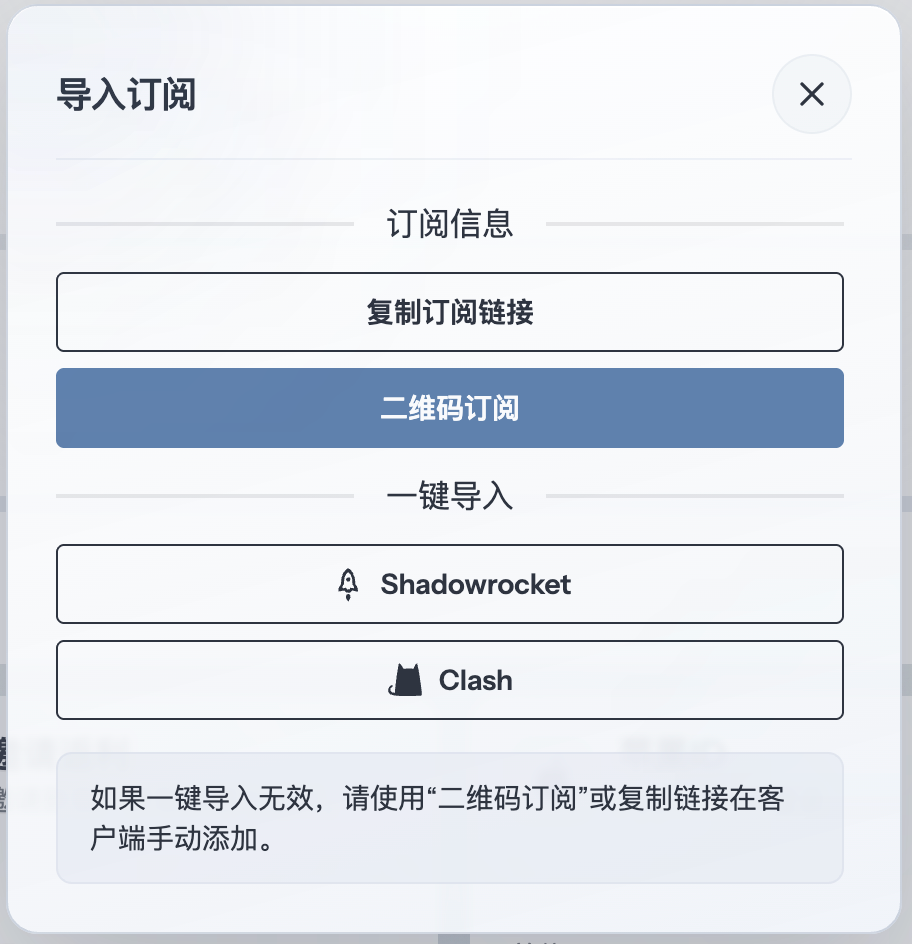
Copy the URL for a Clash Plus-compatible configuration from your provider's dashboard. Using 畅连 as an example, open the subscription import window and click “复制订阅链接” (Copy subscription link).
Step 04Add a subscription
Click 连接 (Connect), then click + at the top right, paste the full subscription URL and save.
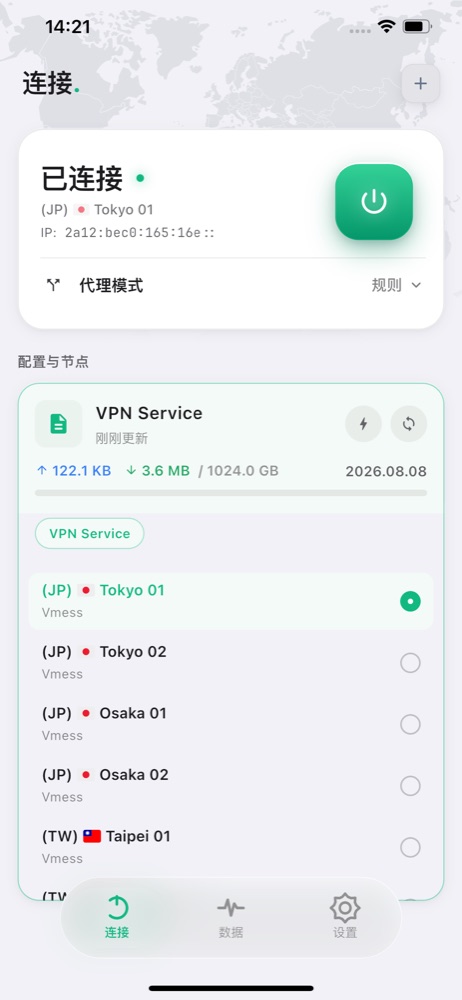
If the download fails, check that the URL is complete and provides a Clash Plus-compatible configuration, then add it again. Do not use the provider’s login page.
Step 05Select a node
Click 代理模式 (Proxy Mode), choose 规则 (Rule), expand a policy group in the profile and click a working node.
Step 06Start the connection
Click 连接 (Connect), then click the power switch. On the first connection, allow the Clash Plus VPN configuration and authenticate with your device passcode or biometrics. If you denied permission, return to the app and try again.
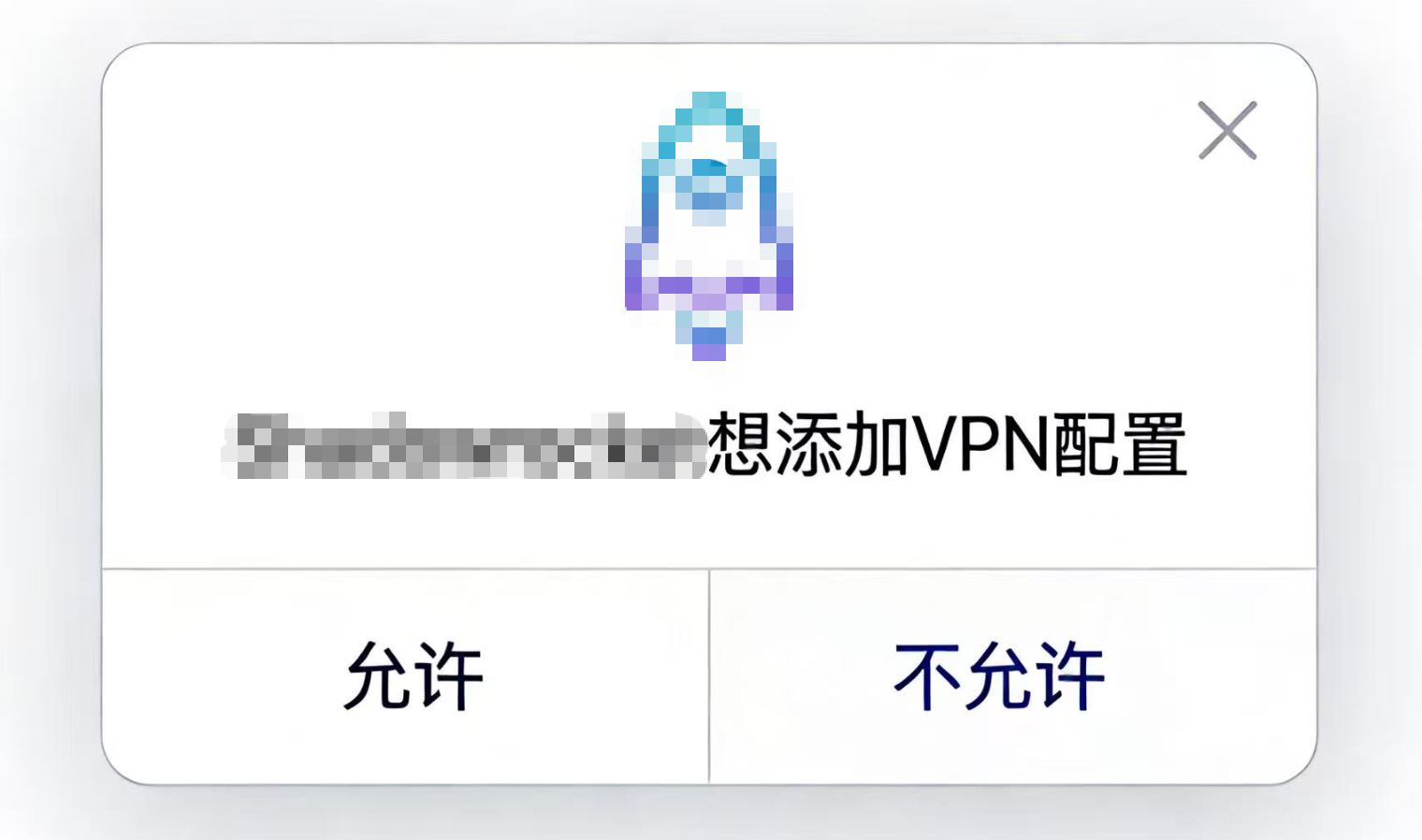
Return to the Connect screen and confirm the status reads Connected.
Step 07Check the connection
First open a website you can normally access without a proxy, then one that requires a proxy. Next, click 数据 (Data) to check traffic and outbound information. If access fails, try another working node and compare Wi-Fi with cellular data.
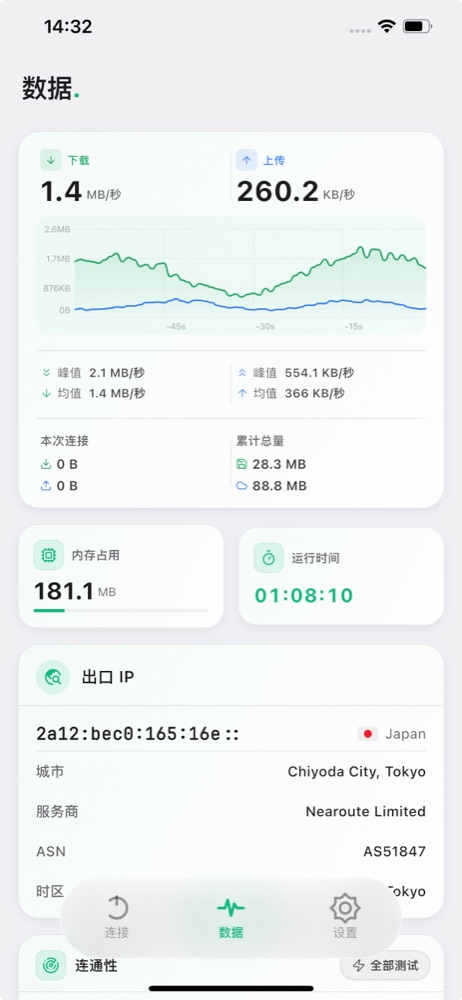
To stop using the proxy, return to 连接 (Connect), turn off the connection and check that your original network works.
Step 08Proxy modes explained
Click 连接 (Connect) → 代理模式 (Proxy Mode) and choose a mode:
规则 (Rule): Follow the configuration’s rules to select a proxy group, direct access or rejection. Use this for everyday browsing.
全局 (Global): Skip routing rules and use the global policy’s selection. Choose a working node; selecting DIRECT still connects directly.
直连 (Direct): Connect to the destination without a proxy node.
You still need to click the connection switch and allow VPN access. Modes apply only to requests passed to the app. Return to 规则 (Rule) after troubleshooting.