
On this page
To download Shadowrocket with a shared Apple ID, you need an account-sharing link and the steps for signing in and downloading in the App Store. Follow the links and screenshots below. Once the download is complete, sign out of the shared account and sign back in with your own Apple ID.
Apple ID Sharing Websites
This page gathers Apple ID sharing links to help you find an account for downloading Shadowrocket. Check the provider’s page for account availability and service status.
| Sharing website | Service details from the provider | Account link |
|---|---|---|
| Provided by Changlian | Regular checks, automatic unlocking, free access | View |
| Provided by Baohe | Regular checks, automatic unlocking, free access | View |
| TK Baohe | Regular checks, automatic unlocking, free access | View |
| Toronto Sharing | Regular checks, automatic unlocking, free access | View |
| Shadowrocket Accounts | Regular checks, automatic unlocking, free access | View |
Shadowrocket Download Tutorial
Shadowrocket (Little Rocket) is a well-known iOS proxy utility with a simple interface and powerful features. Here is the complete tutorial for downloading Shadowrocket using a shared Apple ID.
I. Open the App Store
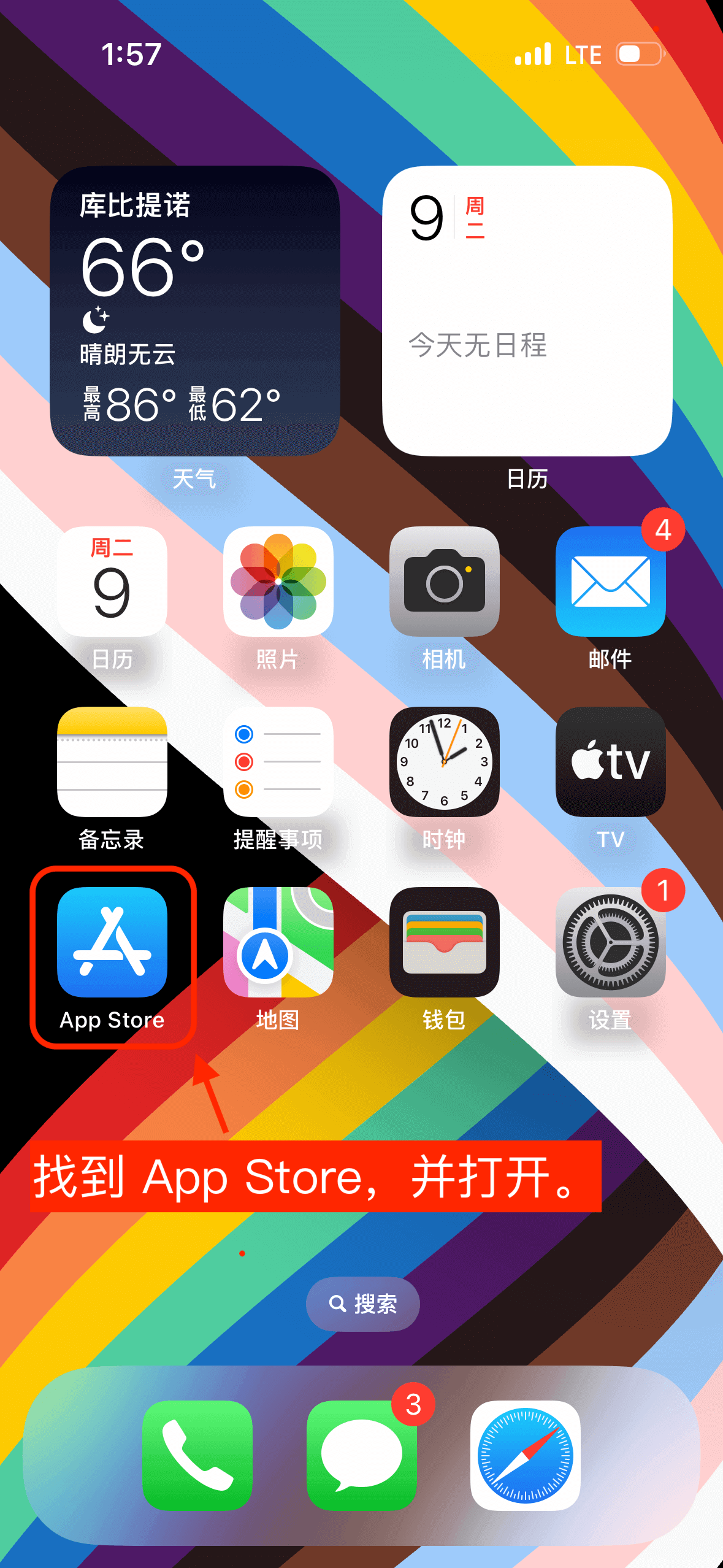
II. Open the account page
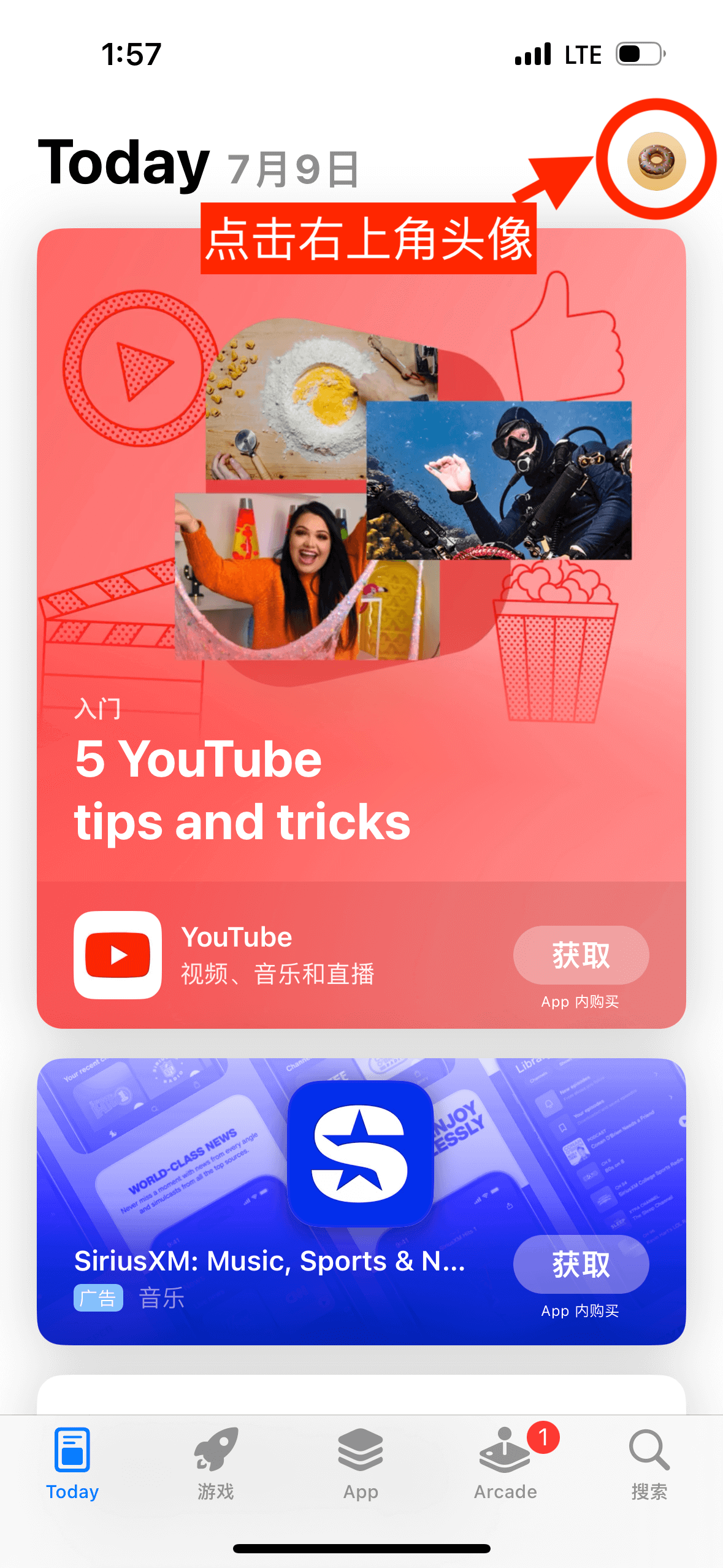
III. Sign out of the current account
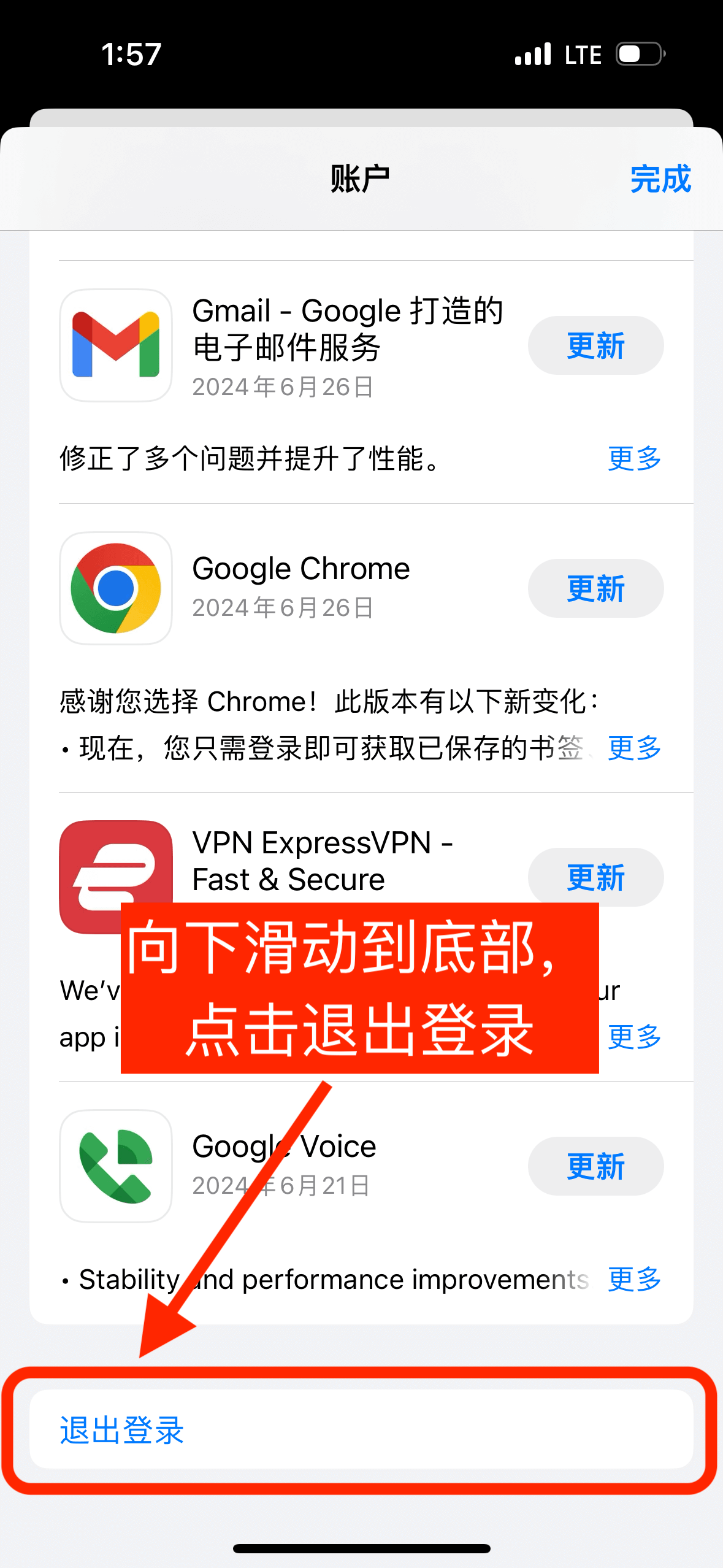
IV. Sign in to the shared account
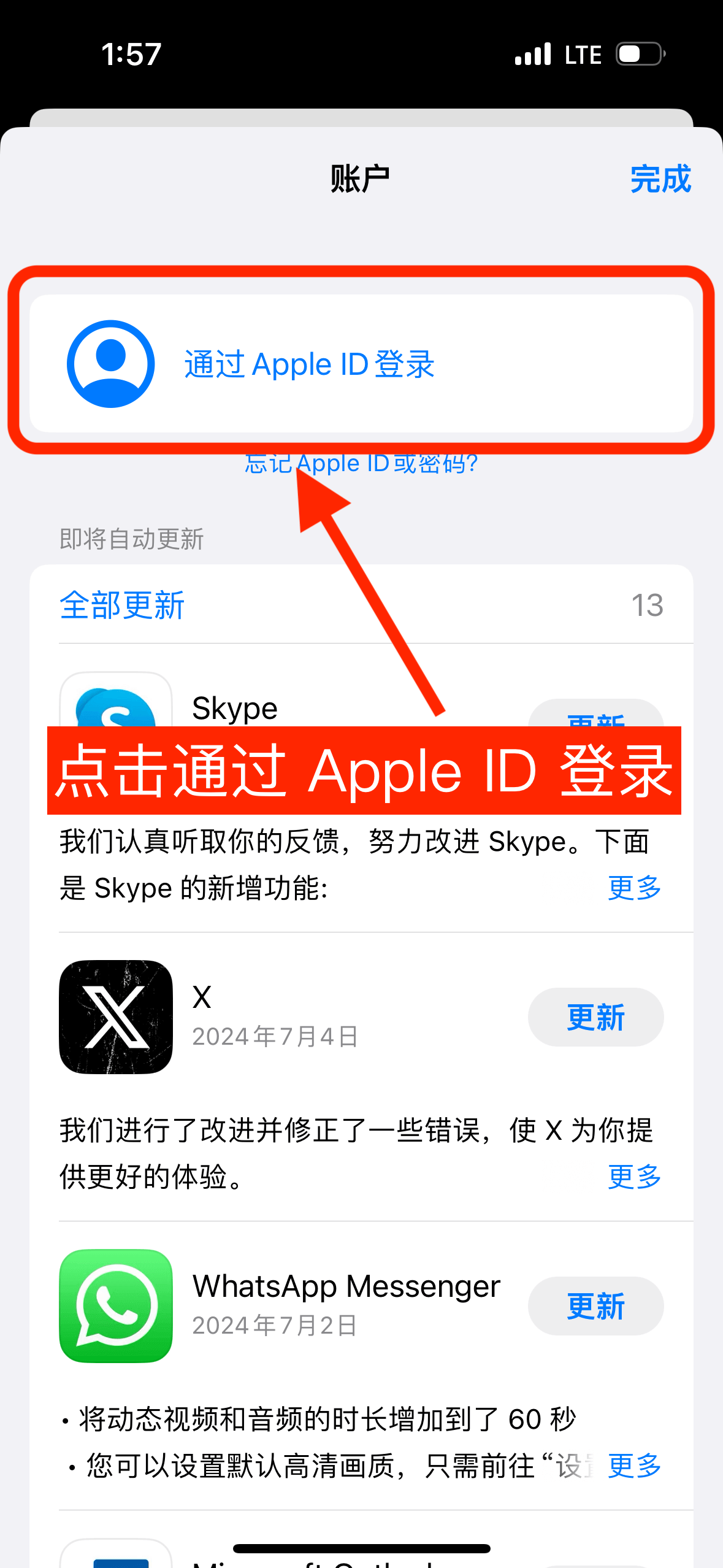
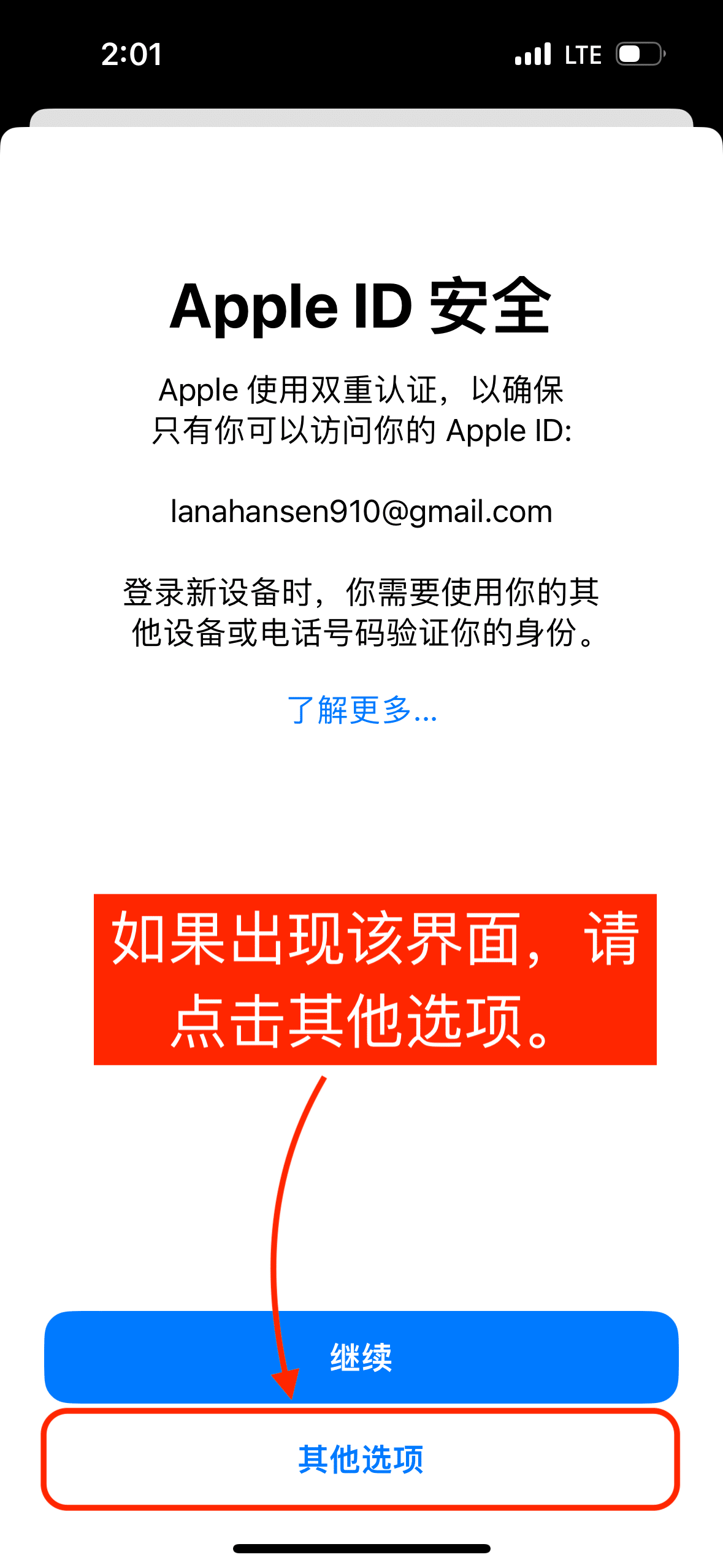
V. Handle the security prompt
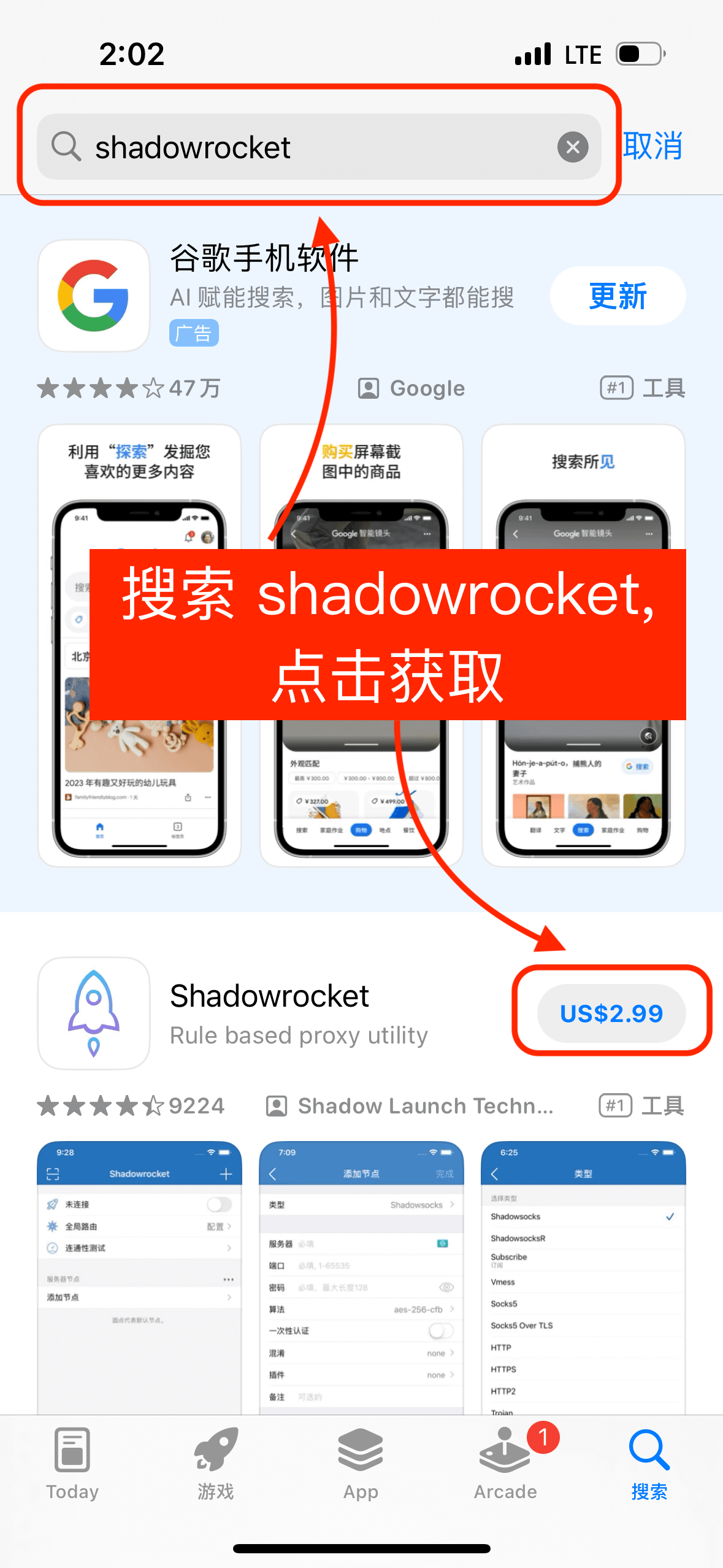
VI. Search and download
VII. Sign out of the shared account
After downloading, be sure to sign out of the shared account and sign back in with your own Apple ID.