
On this page
Proxy setup on a Mac can bring up several kinds of system permission prompts, but granting permission again will not solve every problem. The client must run and load its configuration before application requests can be forwarded. Before extending which connections it handles, keep the system proxy already verified in the browser, then check the relevant network permissions and the result after changing networks.
The Menu-Bar Client Is Running, but Is the Core Working?
A macOS client usually remains in the menu bar and keeps running after its main window closes. The core status in settings or logs shows whether the process handling connections is working. Persistent core failed or permission denied errors call for fixing local startup and permissions first.
Quit the old ClashX instance, other Mihomo clients, and VPN software so several programs do not modify the system proxy together.
Import, update, and select a configuration in Profiles
The screens in this section use Clash Verge Rev, where the sidebar entry is Profiles. Other macOS clients use their own configuration controls; they need not have a page with that name. Likewise, handle only the permissions your current client actually requests later on.
Import a remote configuration on macOS
Open Profiles
Paste the Clash- or Mihomo-compatible HTTPS link supplied by the provider.
Update manually
Wait for a new update time and watch for 401, 403, timeout, or parse error.
Select the Profile
Ensure that the current marker is not on an old configuration or sample file.
Open Proxies
Confirm that policy groups and nodes are not empty.
macOS network permissions cannot fix subscription errors. If an update returns 401/403, address the token or account; if it returns a YAML parsing error, check the core and format. The system proxy and TUN can use the nodes and rules only after the Profile has loaded.
System Proxy: Verify Connections in the Browser
A lit menu bar icon means only that the client is running, not that the browser uses it. Pin one node in the primary group under Proxies and keep the mode on Rule. When you enable System Proxy, macOS may ask permission for the app to change network proxies. Confirm that the prompt comes from the current client, then enter system credentials or use Touch ID.
Open a familiar site in Safari or Chrome and inspect its domain, rule, and outbound route in Connections. A successful page and the expected record show that this system-proxy request worked. To verify a node, also confirm the request actually used it. If the browser works but the terminal has no record, the terminal may ignore the system proxy.
Evidence that the system proxy works
- macOS network settings shows the current client's local proxy port
- The browser request enters Connections
- Rule and the final outbound route match expectations
- After disabling System Proxy, the same request no longer passes through Clash
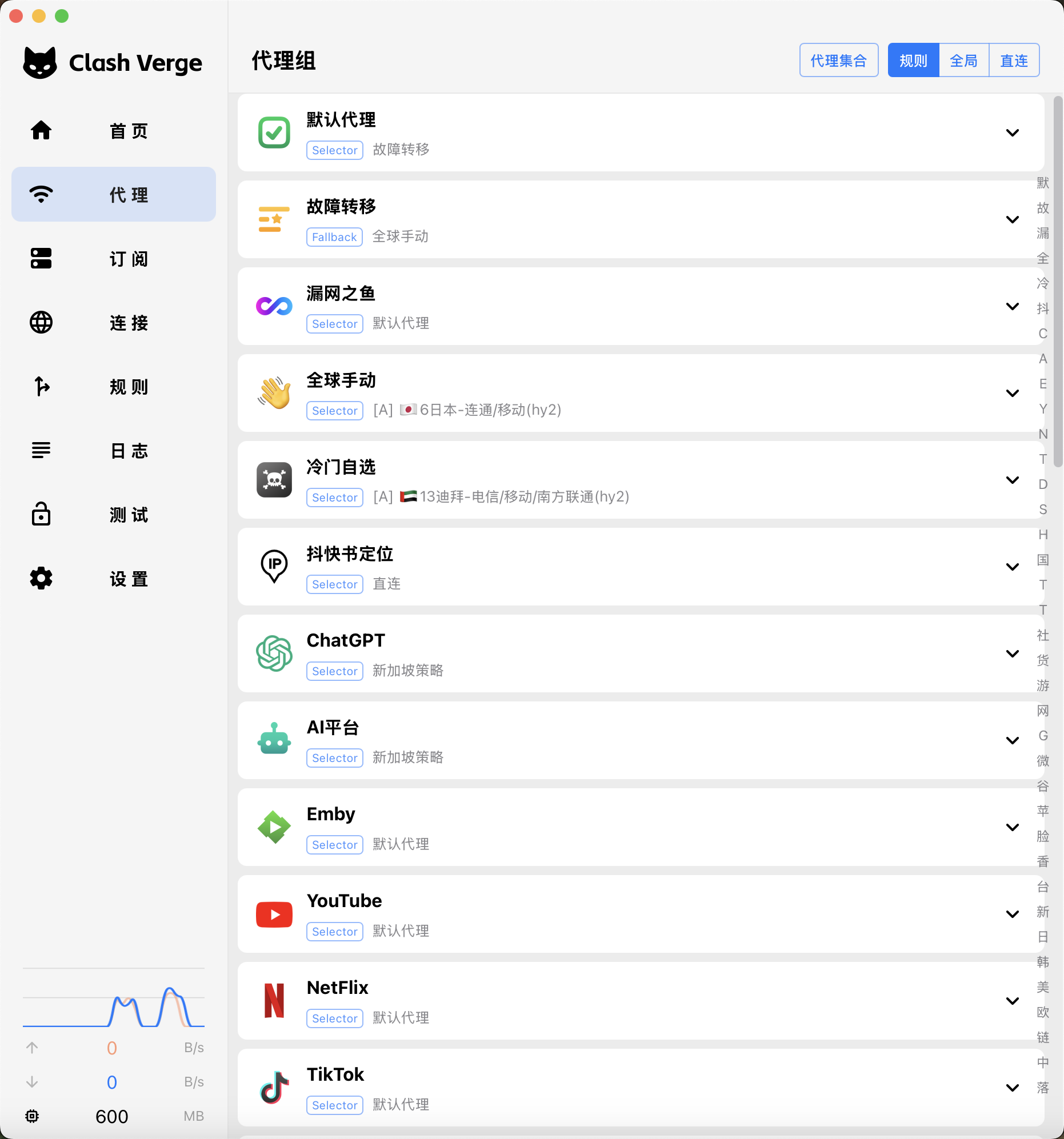
TUN Network Extension, VPN, and Helper-Service Permissions
TUN creates a virtual network interface and sends more TCP and UDP connections to Mihomo. If a terminal tool, game launcher, or software that ignores the system proxy has no Connections record, compare with TUN. A request that already enters Clash but matches the wrong rule does not need broader capture.
When enabling TUN, macOS may ask you to install or allow a network extension, helper service, or VPN configuration. System settings names the specific item; its developer and app should match the current client.
If the toggle immediately switches back or logs show permission denied, use the logs to check the network-extension, VPN, or helper-service permissions needed by this client. Address them in system settings or the client’s built-in service controls. Return to the client, enable it again, and wait for the virtual interface to be ready.
Permission prompt and purpose
| macOS prompt | What it enables |
|---|---|
| Modify the system proxy | Allows apps that honor the system proxy to connect to the local port |
| Network extension / VPN configuration | Creates or runs the TUN capture path |
| Administrator privileges / helper service | Performs networking operations that require system privileges |
| Local network access | Discovers or connects to local-network devices; whether it is needed depends on the scenario |
Retest Programs with No Previous Records Through TUN
Compare only one action before and after TUN
Reproduce with TUN disabled
Confirm that the program has no connection record under the system proxy.
Enable TUN
Keep the same Profile, Rule mode, and fixed node.
Repeat the exact same action
For example, run the same terminal command or open the same launcher page.
Inspect the new connection
Record the process, domain, matched rule, and outbound route.
If enabling it produces a successful connection record, TUN has captured this request. If the record shows DIRECT, check rules; if it reaches a node and reports timeout, compare nodes and networks. If there is still no record, check the network extension, firewall, and other VPN software rather than continuing to change the subscription.
Disconnections After Wake or a Network Change
When a Mac wakes or switches from Wi-Fi to a phone hotspot, the actual outbound adapter may change while the TUN interface keeps its old state. Wait a few seconds, repeat the original request, inspect Connections, and follow the symptoms below.
When using the system proxy, also check for stale proxy settings. If the core has stopped listening but macOS still points to a port on 127.0.0.1, web requests using that proxy will fail. Clear the stale setting or restart the current client. Closing the main window alone does not mean the core has stopped.
Connections is empty after wake
Reload the core so the client detects Wi-Fi and the default outbound route again.
Only TUN fails after changing networks
Recreate the TUN interface and inspect whether another VPN took over the route.
The browser loses all connectivity after the client exits
Check whether the macOS HTTP, HTTPS, and SOCKS proxies still point to the old port.
Direct Access to NAS Devices, Printers, and Company Domains
If a printer, NAS device, router admin page, or corporate internal domain becomes unreachable with TUN enabled, the likely issue is private addresses entering the proxy path, not the node. If local devices return immediately after disabling TUN, narrow the scope to local-network rules, internal DNS, or routing.
Check whether the IP matches DIRECT in Connections. Common home private ranges usually already have rules, while corporate custom ranges and split DNS must be added based on real settings. Do not copy a “global bypass list” containing unfamiliar ranges; handle only addresses you can verify.
- The IP opens, but the internal domain does not
- Internal DNS likely did not resolve through the original network.
- Both the IP and domain enter the proxy group
- Place the exact local subnet or domain rule before broader rules.
- It remains unreachable with every proxy disabled
- The issue is outside Clash; inspect the current Wi-Fi network and device.
Check Configuration and Permissions After Restart or Wake
After configuring the subscription, System Proxy, and TUN permissions, restart the client once, then let the Mac sleep and wake. If the Profile remains current, browser requests enter Connections, and the program that required TUN continues producing records, permissions and background services were not temporary to this session.
If the system proxy works but TUN is denied again after restart, follow the logs to check this client’s network-extension, VPN, or helper-service permissions. If no requests appear after sleep, reload the core and check the menu-bar process.