
On this page
A downloadable file is only the start of installation. Check the release source, whether the attachment suits your computer, and whether the core starts correctly on first launch. Installing the app does not automatically provide nodes; prepare your own configuration, then test the installation with a web request.
Release Sources for Windows Installers
Open the Clash Verge Rev project’s GitHub Releases and check that the Windows attachment matches the version tag, release date, and release notes on the same page. A similar filename on a file-sharing site, forum attachment, or repackaged “portable bundle” does not establish whether the file has been repackaged.
Choosing x64 or ARM64, and When to Use a WebView2 Bundle
Choosing a Windows installer
| File label | When to use it |
|---|---|
| x64 | The vast majority of Intel- or AMD-based Windows 10/11 computers |
| ARM64 | Windows devices with an ARM processor |
| fixed WebView2 or bundled WebView2 | Managed environments that cannot install WebView2, or where the standard package explicitly reports that the component is missing |
| portable | Users who understand the impact of data directories, permissions, and service mode |
Open “Settings > System > About” and inspect System type; do not guess architecture from the computer's brand or appearance. Intel and AMD generally use x64, while Snapdragon and other ARM devices use ARM64. With a mismatched architecture, Windows often says, “This app can't run on your PC.”
Typical users should start with the standard installer. WebView2 is an interface dependency already present on most Windows 10/11 systems. Consider a bundled release only if the standard installer explicitly reports WebView2 missing and the system cannot install it separately.
SmartScreen Prompts and Installation Permissions
After double-clicking the installer, SmartScreen may say that Windows protected your PC. This is not a signal to disable security; it is a reminder to compare the download page, version, and filename again. If any of the three differ, stop installation and redownload from the project Release.
Company computers may require administrator approval. Do not look for cracked portable packages to bypass restrictions or permanently disable antivirus software. Ask the administrator to approve this program, or install it on a personal device; neither requires replacing system files.
Make only necessary choices during installation
Quit the old proxy client
Exit the old Clash process and VPN from the tray so they do not compete for ports or the system proxy after installation.
Run the installer matching your architecture
The default installation location is usually sufficient; do not add an unfamiliar localization patch.
Launch from the Start menu
Give the interface and core a few seconds to initialize.
Open the About screen
Record the client version and Mihomo core version; both matter during troubleshooting.
Built-In Chinese Language Options and Client Startup Status
After the client opens, go to Settings on the left, then Interface Settings, and select “Simplified Chinese” from the Language menu. This localization changes only interface text, not node protocols or configuration formats. Separate localization patches from the internet are unnecessary and may overwrite files required for automatic updates.
After changing the language, confirm that the core keeps running and the settings and log screens open normally. If the window crashes, stays blank, or repeatedly restarts the core, no subscription is involved yet; investigate the installer, WebView2, old data, or security software.
The window is blank and reports missing WebView2
Install Microsoft WebView2 Runtime; in restricted environments, use the corresponding bundled build from the Release.
The interface works, but the core repeatedly fails to start
Inspect logs for port conflicts, stale configuration, and security-software blocking.
It exits immediately after opening
Confirm that the system version is supported, then retest with a stable installer for the same architecture.
Update and activate a configuration in Profiles
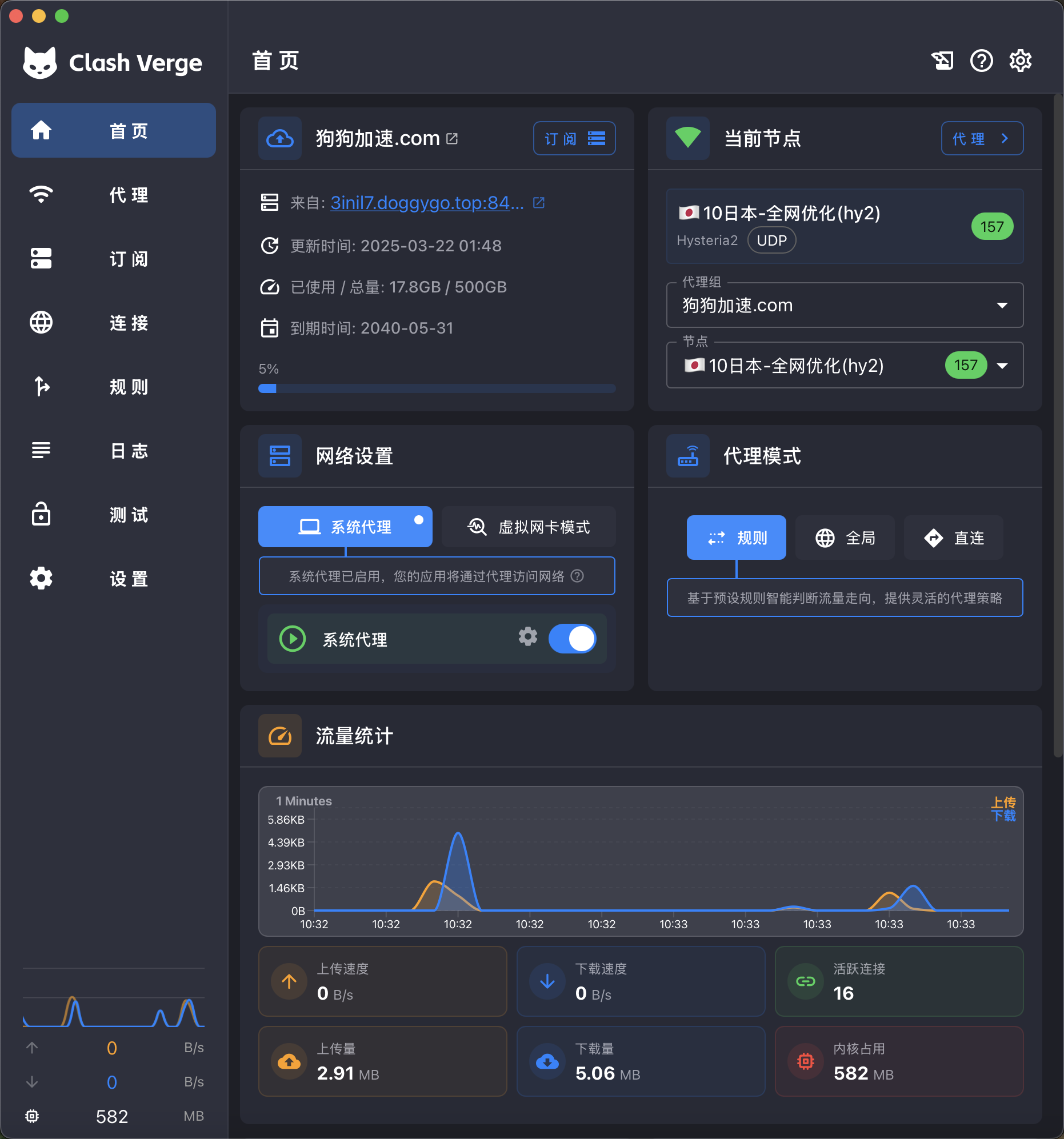
Open Profiles, paste and save the complete HTTPS subscription address, update it manually, and make it active. A name in the list only shows that the address was saved. Complete the import checks below, then test a real web request in the next section.
If the provider offers several formats, choose one compatible with Clash or Mihomo. Do not paste the token-bearing raw link into an unfamiliar online converter. For client error, certificate, or parsing failures, preserve the status code and error text and ask the subscription provider to confirm the format.
Checks after updating and activating a subscription
- Profiles shows a new update time
- The current configuration is selected
- Policy groups and nodes appear on the Proxies screen
- Logs do not repeatedly show parse or download failed
Use a Fixed Node and the System Proxy for the First Connection
Open Proxies and click a working node in the primary selection group. Keep the mode on Rule, then enable System Proxy. Visit a familiar website in the browser and open Connections to inspect the request. If you can see the target, matched rule, and outbound route, the Windows system proxy was configured successfully.
Do not use an automatic benchmark group or enable TUN in the first test. If the browser fails, you then need to inspect only three links: the system proxy, node, and rule. Expand traffic capture only after ordinary requests are stable.
- The page opens, and Connections contains a record
- The installed client, core, configuration, and system proxy can now work together to complete this web request.
- The page fails, and Connections has no record
- The browser did not pass through the client; inspect the System Proxy toggle and Windows proxy settings.
- A record exists and shows DIRECT
- The rule sent this request directly; inspect the rule instead of reinstalling the program.
- The record uses a node but shows timeout
- Switch to another verified node; the installer is usually not the cause.
Common Installation, Subscription, and Browser Request Errors
This app can't run on your PC
Recheck System type and use the matching x64 or ARM64 package.
Profile update shows 401 or 403
The subscription credential is invalid or the server refused access; sign in to the service panel again and generate a link.
Profile updates successfully, but Proxies is empty
Confirm that the response is a Clash/Mihomo configuration rather than a web page or format for another client.
Browser requests do not enter Connections
Confirm that the current client controls the Windows proxy address, and quit the old client.
For later client updates, keep choosing stable-release assets that match your system architecture, and use the built-in language option for Chinese. Clash Verge Rev runs Mihomo, reads configurations, and manages the system proxy; it does not include usable nodes. You need your own subscription or local YAML to connect.